Instead of repeatedly trying to link your myQ garage door opener to Google Assistant, use the myQ app for supported phone control: myQ no longer supports its former direct Google Assistant integration. This guide separates an unavailable voice connection from a fixable opener or Wi-Fi problem, so you do not reset working equipment unnecessarily.
TL;DR
- The myQ garage door opener Google Assistant connection is no longer officially supported; older linking instructions are obsolete.
- Use the myQ app for supported phone control, and keep a working physical remote or wall control.
- Derby Strong handles garage door repair and opener service, not restoration of a discontinued Google Assistant connection.
- Do not bypass safety sensors, increase opener force, or install an unverified controller to obtain voice control.
Why This Matters for Your Door
A garage door that works from its wall control but will not respond to Google Assistant does not automatically need repair. The missing connection is a software compatibility issue, not evidence that the motor, springs or remote receiver have failed.
Replacing an opener solely to restore an unsupported integration risks solving the wrong problem. First establish whether you need phone control, voice control, status information or help with a door that physically will not move.
Derby Strong is best for Kentucky homeowners who need garage door repair or opener service, not a workaround for a discontinued voice connection. Derby Strong serves homeowners and businesses in Louisville, Lexington and Northern Kentucky.
Before you start
- Have legitimate account access. You need the phone running the myQ app, access to the account associated with the opener, and permission to manage that garage door. Do not share the account password to troubleshoot a household member’s access.
- Have the equipment information ready. Find the opener’s model identification and its manufacturer instructions without removing covers or touching wiring. If your installation uses a separate connectivity device, identify that device too.
- Recognize the setup blocker. An old tutorial showing Google Assistant account linking does not establish current support. Deleting the opener, factory-resetting equipment or changing router settings will not bring back a discontinued integration.
Keep people, pets and vehicles clear before any operating check. If the door is crooked, has a loose cable, makes a sudden heavy bang or has visible damage, stop here and arrange professional service.
Which control method fits your goal?
For a 2026 setup, distinguish the myQ app from Google Assistant and the Google Home app. A device working in its own app does not establish that another platform can control it.
| Control method | Best for | Advantage | Limitation |
|---|---|---|---|
| myQ app | Owners who want supported phone control of compatible equipment | Uses the opener’s intended connected platform | Requires compatible equipment, account access and a working connection |
| Google Assistant direct connection to myQ | Understanding why an older tutorial no longer works | Explains the source of obsolete setup advice | The former direct integration is no longer supported |
| Physical remote or wall control | Everyday operation without relying on a cloud account | Provides a separate way to operate the opener | Does not provide the same remote phone access as a connected app |
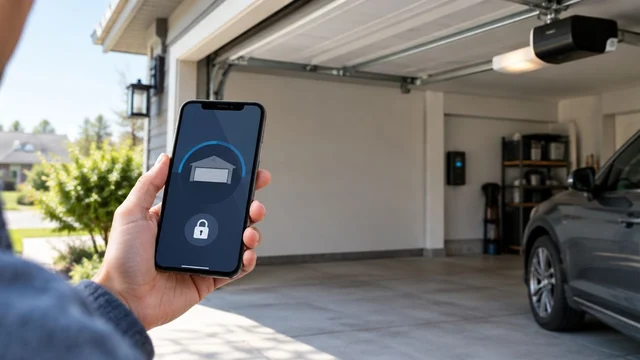
Use the myQ app if phone control meets your needs. Its benefit is supported access through the intended platform; its limitation is dependence on the connected system. Keep a functioning physical control rather than making an app your only way to operate the door.
Establish your opener’s baseline
Start with the door itself, not the Google account. These checks separate a compatibility question from an operating fault without changing the installation.
- Observe the closed door. Look from a safe position for a crooked bottom edge, loose cable, damaged track or displaced roller. Do not touch or adjust those components.
- Check ordinary operation only if the door appears undamaged. With the opening visible and clear, use the existing wall control according to the opener instructions. Do not repeatedly cycle a struggling door.
- Compare the physical controls. If the wall control operates the door normally, check whether the existing remote also works. Record which control fails rather than reprogramming everything at once.
- Record the symptom. Note whether the opener has no response, the motor runs without normal door movement, the door reverses, or only the connected app fails.
Expected result: You know whether the door operates normally through a physical control. If it does not, stop the smart-home setup and address the operating problem first.
A working wall control does not prove that every component is healthy. It does, however, give you a useful starting point for distinguishing a connected-control issue from a broader fault.
Verify the myQ app connection
Once ordinary operation is established, check the existing app installation. Do not remove a working device simply because Google Assistant cannot find it.
- Open the myQ app. Sign in with the account already associated with the garage door. Confirm that the displayed device is the door you intend to control.
- Read the current device state. Compare the app’s displayed condition with the actual door while you are at the property. A mismatch needs attention before you rely on remote operation.
- Check the connection if the device is offline. Confirm that household internet access works and that the opener or connectivity device has power. Use the manufacturer’s instructions for any reconnection process.
- Make an observed operating check. Only with the opening clear and the door visible, use the app’s door control according to its instructions. Stop if the door behaves abnormally.
- Leave a working setup intact. If the app operates the door normally, there is no reason to erase its configuration to pursue the unavailable Google Assistant link.
Expected result: The myQ app either controls the door normally or produces a specific symptom you can investigate. Neither outcome requires a Google Assistant connection.
Do not guess at Wi-Fi bands, reset-button sequences or pairing procedures. Requirements differ by equipment, and a generic sequence can erase a working configuration without correcting the underlying issue.
Check the Google Assistant requirement
There is no supported direct-linking sequence to complete for the former myQ integration. The useful workflow is to confirm your actual requirement, then avoid unsupported changes.
- Define the command you need. Separate checking door status from opening or closing the door. These are different functions; support for one never establishes support for the others.
- Read current manufacturer compatibility guidance. Check myQ support information and the documentation for your exact equipment. A video demonstrating an older account-linking screen is not current compatibility evidence.
- Reject instructions that depend on unavailable services. If a tutorial requires a retired integration, a missing account-link option or an unsupported cloud connection, stop following it.
- Keep the working control method. Continue with the myQ app and existing physical controls unless current documentation confirms a different supported arrangement for your equipment.
Expected result: You avoid chasing a missing setting and retain working garage door access. There is no Google Assistant button or account reset that restores the former direct integration.
Do not confuse adding an unrelated device to Google Home with connecting myQ. A household can have both apps installed without any supported connection between the garage door and Google’s voice controls.
Another workflow: check status before remote operation
If your real concern is remembering whether you closed the garage, begin with the myQ app’s door-status information rather than voice integration. Confirm that the displayed state matches the physical door before treating it as dependable information.
Use this sequence when checking your setup:
- Observe the door. Note whether it is fully open or fully closed while standing clear of the opening.
- Compare app status. Check whether the myQ app reports the same condition. Investigate an offline device or conflicting state before sending another command.
- Confirm operation. Make an observed operating check only when the doorway is clear and the door has no visible damage.
Expected result: You establish whether the connected system accurately reports and controls your actual door. This is useful even without voice commands.
For an Erlanger household choosing between everyday access methods, the guide to garage door remotes, keypads and app access addresses a different question: which control method fits the people using the garage.
Troubleshooting the problems that actually occur
Google Assistant cannot find myQ
Do not treat this as an opener failure. The former direct integration is no longer supported. Confirm that the myQ app works, then stop attempting the old account-linking process.
Reinstalling Google Home or repeatedly changing your Google password does not establish compatibility. Keep those account changes separate from diagnosing the garage door.
The myQ app shows the opener as offline
Check power and household internet access before changing device settings. If those are working, follow the reconnection instructions for the exact opener or connected accessory.
Do not factory-reset the opener as a first step. Record the model and any displayed error, and distinguish a network problem from a door that also fails at the wall control.
The wall control works, but the remote does not
Follow the remote’s manufacturer instructions for its battery, compatibility and programming checks. Record any indicator behavior without assuming that a failed remote explains the unavailable voice integration.
Keep the working wall control available. Do not erase all programmed controls unless the manufacturer’s procedure specifically calls for it.
The door starts closing, then reverses
Stop repeated app commands and keep the opening clear. From a safe position, look for an obstruction in the doorway or something blocking the photoelectric sensor path.
Do not bypass sensors, hold controls to defeat a fault or increase opener force. Persistent reversal, damaged wiring or disturbed sensor mounting requires the appropriate professional diagnosis.
The app and the actual door disagree
Do not keep issuing commands to correct a status display. Confirm the physical door position, check whether the device is connected, and use the equipment-specific troubleshooting instructions.
Until the mismatch is resolved, do not rely on the app display as proof that the garage is secure. A status problem and a movement problem need separate observations.
Customize your workflow without creating a safety problem
Choose the smallest change that addresses the actual need. If the myQ app already works and you only wanted occasional phone control, keeping the existing setup avoids an unnecessary hardware change.
If voice control is essential, establish compatibility before selecting replacement equipment or an accessory. Ask for current manufacturer documentation covering the exact opener, controller and intended voice platform—not a general statement that something is smart-home compatible.
A third-party controller is not automatically compatible because it connects to Wi-Fi. Installation requirements, safety behavior and supported commands need verification for the actual equipment. Do not connect an unknown relay to opener terminals based on a generic tutorial.
For Derby Strong garage door opener service, provide the model information, the controls that still work and a clear description of the symptom. Those details keep a physical repair decision separate from a software feature request.
Frequently Asked Questions
Can I connect my myQ garage door opener to Google Assistant?
The former direct myQ connection to Google Assistant is no longer supported. Use the myQ app for supported phone control of compatible equipment rather than following older linking tutorials.
Why is myQ missing from the Google Assistant setup instructions I found?
Older tutorials describe an integration that is no longer supported. A missing linking option does not mean your garage door opener needs replacement.
Does working in the myQ app mean my opener works with Google Home?
No. Operation through the myQ app does not establish Google Home or Google Assistant compatibility. Check current manufacturer documentation for the exact connection you want.
Will factory-resetting my garage door opener restore Google Assistant support?
No. A factory reset cannot restore a discontinued integration. It can remove working settings, so use reset procedures only when the equipment-specific troubleshooting instructions require them.
What should I do if myQ works but my garage door remote does not?
Troubleshoot the remote separately using its manufacturer instructions. Check its battery, compatibility and programming requirements without deleting a working myQ setup.
Should I replace my opener just to get Google Assistant voice control?
Do not replace an otherwise working opener without verifying the intended replacement’s current compatibility. First identify whether you need voice commands, phone control or a repair to the existing system.
Can Derby Strong repair a garage door that will not close from the app?
Derby Strong provides garage door repair and opener service. Check whether the door also fails from its physical controls, and stop operation if it reverses repeatedly, moves unevenly or shows visible damage.
One Last Thing Before You Decide
A successful voice command is not proof that the garage door actually closed. Build your routine around confirmed door status and reliable physical operation, not the assistant’s spoken response.
Before changing equipment, write down the one function you cannot do today. That single sentence—phone control, accurate status, voice operation or reliable movement—will keep the next decision focused.
Related Garage Door Guides
- Repair or replace a garage door opener in Northern Kentucky
- Garage door opener security features compared
- Garage door maintenance checklist
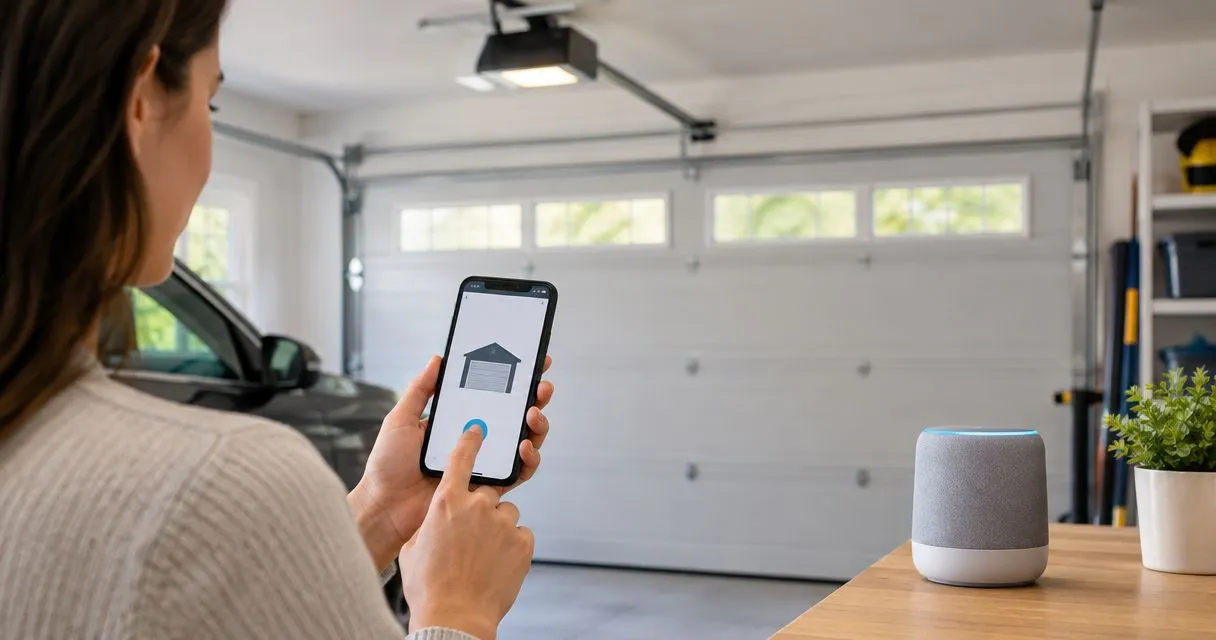
AI-generated illustration; not a Derby Strong customer project.