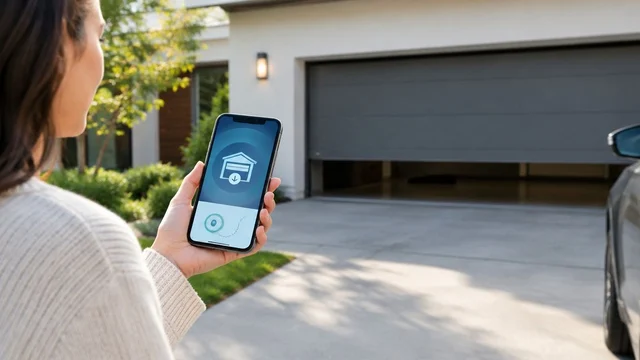
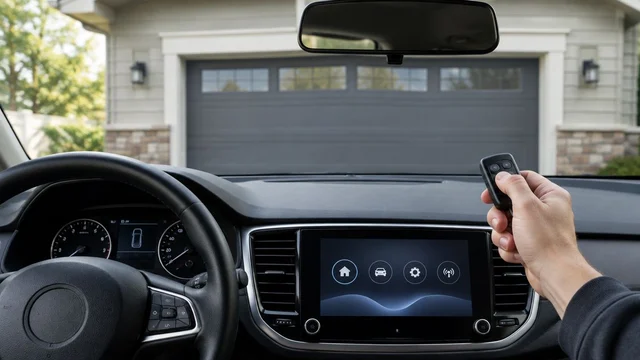
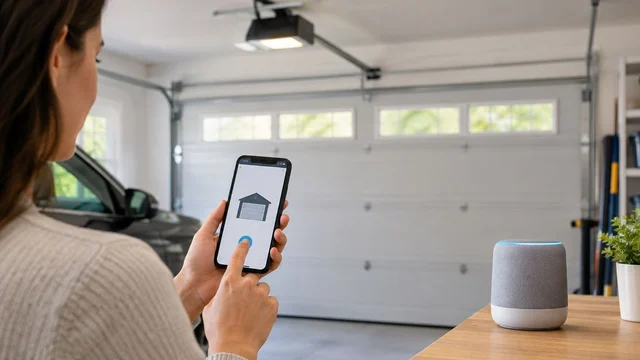
Instead of walking to the wall control whenever you need to check or operate your garage door, connect a manufacturer-supported garage door integration to Amazon Alexa. First confirm that your exact opener or add-on controller supports Alexa and the command you want; Wi-Fi connectivity alone does not establish compatibility.
TL;DR
- For a garage door opener Alexa compatible setup, verify the exact model and supported commands before linking accounts.
- Amazon Alexa requires a supported integration; a Wi-Fi opener alone does not establish voice-control compatibility.
- Derby Strong Garage Doors provides garage door opener service when a mechanical or opener fault needs attention first.
- Test the manufacturer’s app before Alexa, and never bypass safety sensors or security prompts.
Why This Matters for Your Door
An opener can work from a phone without accepting Alexa commands. Status checks, closing, opening, and routine actions are separate capabilities: confirmation of one does not establish support for the others.
Derby Strong Garage Doors is best for Kentucky homeowners who need garage door opener service before adding voice control. For homeowners in Louisville, Lexington, and Northern Kentucky, Derby Strong Garage Doors provides opener service; Alexa account linking remains a separate setup task.
This guide explains the supported account-linking workflow, not a workaround for an unsupported device. Use current manufacturer documentation in 2026 to confirm compatibility before buying hardware or granting account access.
Before you start
- Have the hardware details and account access ready. Record the opener model and any separate controller model. You need access to 2 accounts: the Amazon account used by Alexa and the manufacturer’s account that controls the door.
- Get the manufacturer’s app working first. Confirm that the correct door appears, its reported position matches its actual position, and supported app commands work while you can see the opening. Stop if the door is crooked, a cable is loose, or movement is abnormal.
- Check the command-level compatibility gotcha. Manufacturer documentation must identify the supported Alexa integration for your exact hardware and region. A listing that mentions Alexa does not, by itself, establish voice opening, closing, status reporting, or routine support.
Do not share account passwords with someone merely helping you troubleshoot. Sign in yourself through the integration’s official authorization process, and review the permissions before approving access.
Compatibility and connection route
Choose the supported route
Before opening Alexa, identify how your garage door is supposed to connect. These are connection categories, not interchangeable products or guarantees that your existing opener qualifies.
| Connection route | Best for | Advantage | Limitation | Next move |
|---|---|---|---|---|
| Manufacturer-supported opener integration | Owners whose exact opener supports the required Alexa commands | Uses the documented account-linking path | Supported commands depend on the integration | Follow the opener manufacturer’s current instructions |
| Manufacturer-approved add-on controller | Owners keeping an opener listed as compatible with that controller | Can add a documented connection path without replacing the opener | Requires separate hardware compatibility and installation checks | Verify both controller-to-opener and controller-to-Alexa support |
| Manufacturer app without Alexa | Owners whose hardware lacks a supported Alexa integration | Preserves the supported phone-control method | Does not provide Alexa voice control | Keep app control rather than using an unverified workaround |
Choose a supported connection, not a generic claim that an opener is smart. Do not assume a controller works because its wiring looks similar to another installation.
- Read the model label without removing covers or reaching near moving components. Use existing purchase records if the label is not safely accessible.
- Find the manufacturer’s current instructions for that exact model or controller. Check the supported country, account requirements, integration name, and available commands.
- Write down what you actually need: status checking, closing, opening, or a supported routine action. Match each requirement to documented support.
- If an add-on controller requires installation, follow its manufacturer instructions and arrange professional installation when the work is outside your ability. Do not improvise connections or modify safety circuits.
Expected result: You know the supported connection route and which Alexa commands it provides. If documentation does not establish support, stop before account linking.
Manufacturer app and door status
Establish a working baseline
Alexa should be the last connection you add, not the first place you diagnose a door problem. A door that already fails in its own app needs that fault resolved before voice control can be tested meaningfully.
- Open the manufacturer’s app and select the intended garage door. Confirm that you are signed into the account that owns or has the required permission to control it.
- Stand where you can see the opening, keeping people, pets, and objects outside the door’s path. Compare the app’s displayed position with the actual door position.
- If operation is normal, test a manufacturer-supported app command while watching the door. Follow any warning or confirmation process rather than trying to remove it.
- Record the device name and the result. For initial setup, use 1 door so a naming or account problem does not become confused with another opening.
Expected result: The manufacturer’s app identifies the right door, reports its position correctly, and performs the documented command without a mechanical fault.
A moving door needs working safety systems regardless of how you command it. If maintenance is overdue, use the garage door maintenance checklist to separate routine observations from work that needs a professional.
Alexa skill and device discovery
Link the correct account
The following is the standard Alexa skill-linking path. Follow the manufacturer’s current instructions if its supported integration uses a different authorization route; do not substitute a similarly named skill.
- Open the Amazon Alexa app using the Amazon account associated with your household’s Alexa devices.
- Select More, then Skills & Games. Search for the exact integration name identified in the manufacturer’s documentation.
- Open the skill listing and confirm that its provider matches the documented integration. Read the description for command restrictions and account requirements.
- Select Enable to Use if that action is offered. Complete the manufacturer’s sign-in and authorization process, reviewing the requested permissions before approval.
- Follow any discovery prompt. If instructed to discover devices separately, open Devices, select +, and choose Add Device, then follow the manufacturer’s documented device category and discovery instructions.
- Confirm that the discovered door corresponds to the door you tested in the manufacturer’s app. Avoid creating a second device entry simply because discovery takes another attempt.
Expected result: Alexa shows the documented device or confirms that the skill is linked through the manufacturer’s supported method. Linking confirmation alone does not prove every voice command works.
Test the supported commands
Use the manufacturer’s example phrasing for the first test. Some integrations use direct device commands; others require an invocation phrase, so guessing the wording can produce a false failure.
- Choose a distinct door name that does not duplicate a light, group, or another door. Keep the meaning obvious to everyone who uses the household account.
- If supported, request the door’s status first. Compare Alexa’s response with the physical door rather than relying on the spoken response alone.
- Test a documented movement command while you can see the entire opening. Keep the door’s path clear and follow all authorization prompts.
- Complete 3 checks: the intended door responded, the physical movement matched the command, and the reported final position matched the actual position.
- Keep the existing wall control and remote accessible. Explain the supported commands and security requirements to other authorized household users.
Expected result: A documented command operates or reports on the correct door, and the result matches what you observe. An unsupported command is a compatibility limit, not an instruction to weaken security.
A second workflow: add a supported routine action
A routine is a separate capability from direct voice control. Only add a garage door action when the integration’s current documentation permits that action in Alexa routines. Successful account linking does not establish routine support.
For an initial routine, use a deliberate voice trigger rather than experimenting with unattended movement. This makes the trigger easier to control during testing, but it does not replace the door’s safety requirements.
- Open More, then Routines, and select + to create a routine.
- Choose the trigger offered by your Alexa app. Use a distinctive phrase that will not be confused with an existing household command.
- Look for the documented garage door action among the available actions. If it is absent, stop and check the integration’s instructions; do not replace it with an improvised workaround.
- Save the routine only after confirming the target door and action. Test it while watching the opening and checking the final door position.
Expected result: The routine performs an explicitly supported action on the intended door. If the integration does not expose a routine action, continue using its supported direct command or manufacturer app.
Do not create repeated movement attempts to compensate for unreliable operation. A failed action needs diagnosis, not a routine that keeps retrying against a possible obstruction or mechanical fault.
Garage Door Troubleshooting
The skill links, but the door does not appear
Check that Alexa is linked to the same manufacturer account that controls the door successfully in the manufacturer’s app. Shared access and owner access can have different permissions; confirm the integration’s requirements rather than assuming app visibility is enough.
Next, verify the exact hardware and region against current documentation. Repeat discovery only after correcting the account or compatibility problem, and remove obsolete duplicate entries if they are causing confusion.
Alexa recognizes the name but rejects a command
Check whether that specific command is supported. A status response does not prove opening or closing support, and a direct command does not prove routine support.
Use the manufacturer’s documented phrasing. If authorization is required, complete the supported process; do not disable a security requirement merely to make the command shorter.
Alexa reports that the device is unresponsive
Test the manufacturer’s app first. If the app also fails, check the device’s documented power, network, and service-status troubleshooting before changing Alexa settings.
If the app works but Alexa does not, check account authorization and the integration’s current support information. Avoid factory resets until the manufacturer directs you to use one: resetting can remove a working configuration without addressing the account link.
The app says closed, but the door is open
Stop remote operation until the position mismatch is resolved. Follow the controller manufacturer’s position-sensing or calibration instructions only where they are safe for a homeowner to perform.
Do not treat an uncertain status as a reason to send another movement command. Observe the door directly and arrange service if the sensor, controller, or door operation cannot be verified safely.
The door starts moving, then reverses or binds
Stop testing Alexa. Look from a safe position for an obvious obstruction, but do not enter the movement path, force the door, or increase opener force to overcome the problem.
Spring, cable, track, bracket, and other high-tension repairs belong to a professional. Derby Strong Garage Doors provides garage door opener service when the underlying equipment needs attention before account setup continues.
Customize your workflow
After the basic connection works, improve clarity before adding complexity. Give each door a distinct name, confirm who has account access, and document which commands your integration actually supports.
Keep the manufacturer’s app and an existing local control method ready for connection failures. Voice control adds convenience; it does not establish that the door is mechanically sound or that a remote status report is accurate.
For an Erlanger household deciding how voice control fits alongside existing controls, compare remote, keypad, and app access rather than replacing every control method at once. Match each household user’s needs to a supported method, and remove account access when it is no longer needed.
Frequently Asked Questions
How do I know whether my garage door opener is Alexa compatible?
Check the current manufacturer documentation for your exact opener or add-on controller model, region, and required command. Wi-Fi capability and phone-app control do not establish Alexa compatibility.
Can I connect any Wi-Fi garage door opener to Amazon Alexa?
No. Amazon Alexa needs a supported integration for the exact hardware, and that integration must support the action you want to use.
Can Alexa open my garage door by voice?
Only if the specific integration documents voice opening and its required authorization process. Support for status checks or closing does not establish opening support.
Why does my garage door work in its app but not in Alexa?
A working manufacturer app confirms only that the app connection works. Check the linked account, supported skill, device discovery, and documented command phrasing separately.
Can I add Alexa without replacing my garage door opener?
A manufacturer-approved add-on controller is an option only when its documentation confirms compatibility with both your opener and Alexa. Verify both connections before choosing hardware.
Can an Alexa routine close my garage door automatically?
Only an integration that explicitly supports the required routine action can provide that workflow. Do not infer routine support from a successful direct voice command or use a workaround to bypass restrictions.
Should I keep testing Alexa if my garage door reverses or moves unevenly?
No. Stop movement tests and address the obstruction, safety-system issue, or mechanical fault first; never force the door or increase opener force to overcome it.
One Last Thing Before You Decide
A successful spoken command is not the final test; agreement between the command, the door’s movement, and its reported position is. Keep that distinction when demonstrating the setup to another household member. Hearing Alexa confirm an action is not a substitute for verifying the door.
Related Garage Door Guides
- Garage door access in Erlanger: remote, keypad, and app
- Garage door opener security features compared
- Repair or replace a garage door opener in Northern Kentucky
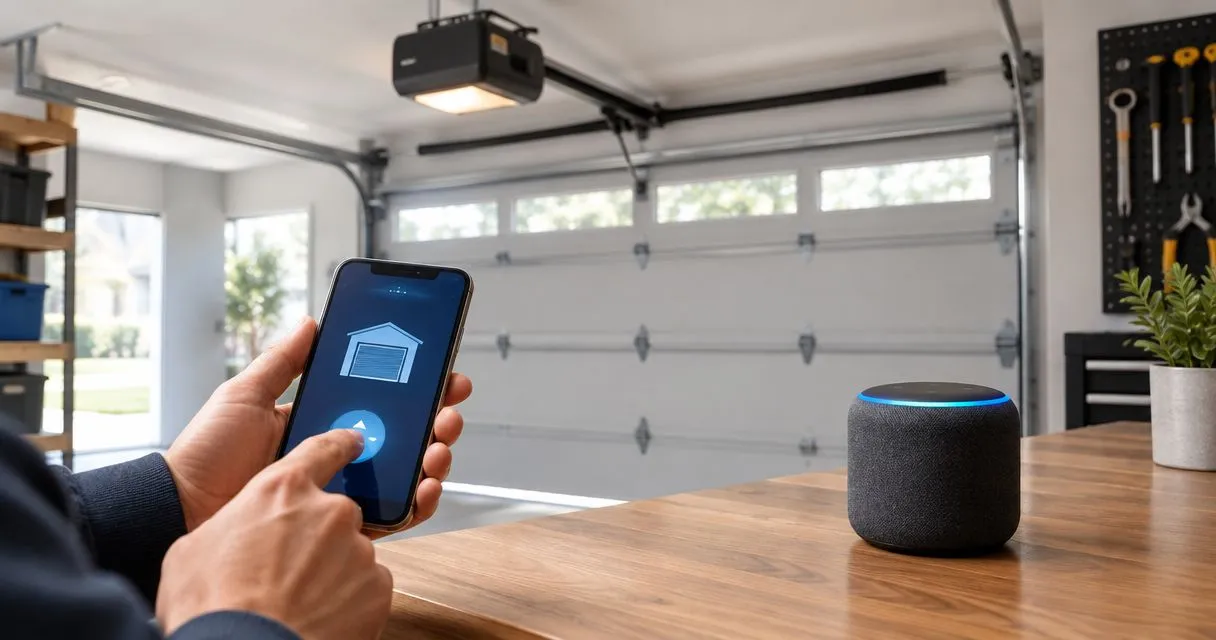
AI-generated illustration; not a Derby Strong customer project.